
Workflows, Best Practice guidance, Tips and Tricks to extract the best from Hammer Missions
In this support article we are going to discuss how you share your finalised project with other team members or stakeholders giving them the essential data that they require for analysis.
1. From the Hammer Hub main page select Data Analysis from the left hand menu.
2. Now select the project you wish to share with your client, in this example we will use 'Burwash Roof Inspection'
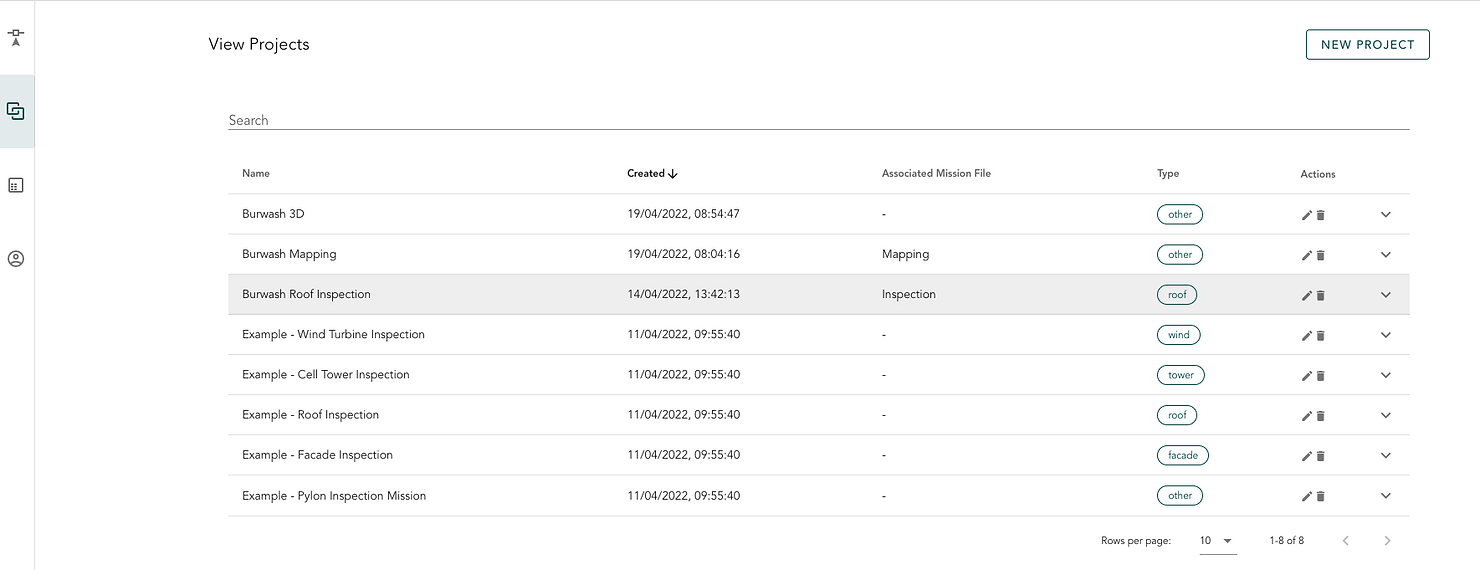
3. This page will present you with the data that you have captured and uploaded to create the project.

4. From here you can select SHARE which is located in the top right corner, highlighted here in red.

5. Selecting SHARE will open a new window allowing you to share your project. There are two options available, share with an existing Hammer user (that user must have an existing account), or share via a link.

6. To share by link check the box as stated and either copy the link manually or select the clipboard to automatically copy the link. This link can the be pasted to an email, document or shared via a messaging service.

Please find a short video demonstration of how to share your projects below:

Note: Any 3rd party you share the project link with does not need to have a Hammer Hub account to view the data in 3D.
However, if they wish to annotate the data, they need to have a Hammer Hub account.
And that is how you share your project with Hammer Hub